CS2 Crosshair Settings Guide
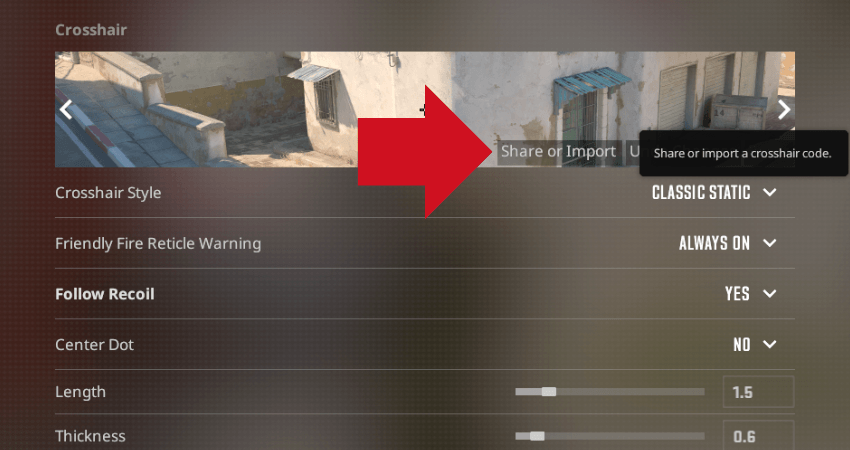
Understanding CS2 Crosshair Settings
Your crosshair is one of the most important elements of your CS2 setup. A well-configured crosshair helps you aim more consistently and track enemies more effectively. CS2 offers extensive crosshair customization through the in-game settings menu and console commands.
Key Crosshair Parameters
Style (cl_crosshairstyle)
CS2 offers several crosshair styles:
- Style 0-3: Dynamic crosshairs that expand when moving or shooting
- Style 4: Classic static crosshair — used by the vast majority of professional players
- Style 5: Classic dynamic — expands when shooting but not when moving
Recommendation: Style 4 is the competitive standard. Over 90% of professional players use a static crosshair because it provides consistent visual feedback without distracting movement.
Size (cl_crosshairsize)
Controls the length of the crosshair lines. Values typically range from 1 to 5:
- 1-2: Small, precise crosshair — popular among AWPers and players who prefer minimal obstruction
- 2-3: Medium — the most common range among professionals
- 4-5: Large — easier to see but covers more of the target
Gap (cl_crosshairgap)
Sets the distance between the center and the crosshair lines. Negative values bring lines closer together:
- -3 to -2: Very tight gap — the most popular among pros, creates an almost dot-like center
- -1 to 0: Standard gap
- 1+: Wide gap — rare in competitive play
Thickness (cl_crosshairthickness)
Controls line width. Values from 0 to 2 are most common. Thinner crosshairs (0-0.5) are precise but harder to see; thicker ones (1-1.5) are more visible but cover more screen area.
Color (cl_crosshaircolor)
Preset colors available:
- 0: Red
- 1: Green (most popular — high visibility on most backgrounds)
- 2: Yellow
- 3: Blue
- 4: Cyan
- 5: Custom (set with cl_crosshaircolor_R, _G, _B)
Outline (cl_crosshair_drawoutline)
Adds a dark border around crosshair lines, improving visibility against bright backgrounds. Set to 1 to enable. About 30% of pros use outlines.
Dot (cl_crosshairdot)
Adds a center dot. Most pros play without it (0), but some AWPers prefer a dot-only crosshair for precise flick shots.
How to Use Crosshair Codes
CS2 introduced crosshair share codes — a convenient way to copy another player's exact crosshair. To import a code:
- Open Settings → Crosshair
- Click "Share or Import"
- Paste the code (format: CSGO-XXXXX-XXXXX-XXXXX-XXXXX-XXXXX)
- Click "Import"
Most Popular Pro Settings
Based on data from our Pro Settings database, these are the most common crosshair configurations among top professionals:
| Parameter | Most Popular Value | Usage % |
|---|---|---|
| Style | 4 (Static) | ~95% |
| Size | 1.5 - 2 | ~60% |
| Gap | -3 to -2 | ~75% |
| Thickness | 0 - 0.5 | ~55% |
| Color | 1 (Green) | ~65% |
| Outline | Off | ~70% |
| Dot | Off | ~90% |
Console Commands
You can also configure your crosshair through the developer console (enable it in Settings → Game → Enable Developer Console):
cl_crosshairstyle 4; cl_crosshairsize 2; cl_crosshairgap -2; cl_crosshairthickness 0.5; cl_crosshaircolor 1; cl_crosshair_drawoutline 0; cl_crosshairdot 0
Tips for Choosing Your Crosshair
- Start with a pro player's crosshair that matches your playstyle (rifler vs AWPer)
- Test in Deathmatch before using in competitive — spend at least 30 minutes with a new crosshair
- Visibility is key — if you lose your crosshair against certain map textures, try adding an outline or changing the color
- Smaller isn't always better — a crosshair you can't see is worse than one that's slightly too large
- Don't change too often — pick a crosshair and stick with it for at least a week to build muscle memory